Recap
Meeting notes,
on your Mac.
Recap turns meetings and dictation into searchable, speaker-labeled notes — and does it on your Mac, not in the cloud.
What it
does
Both sides of the call
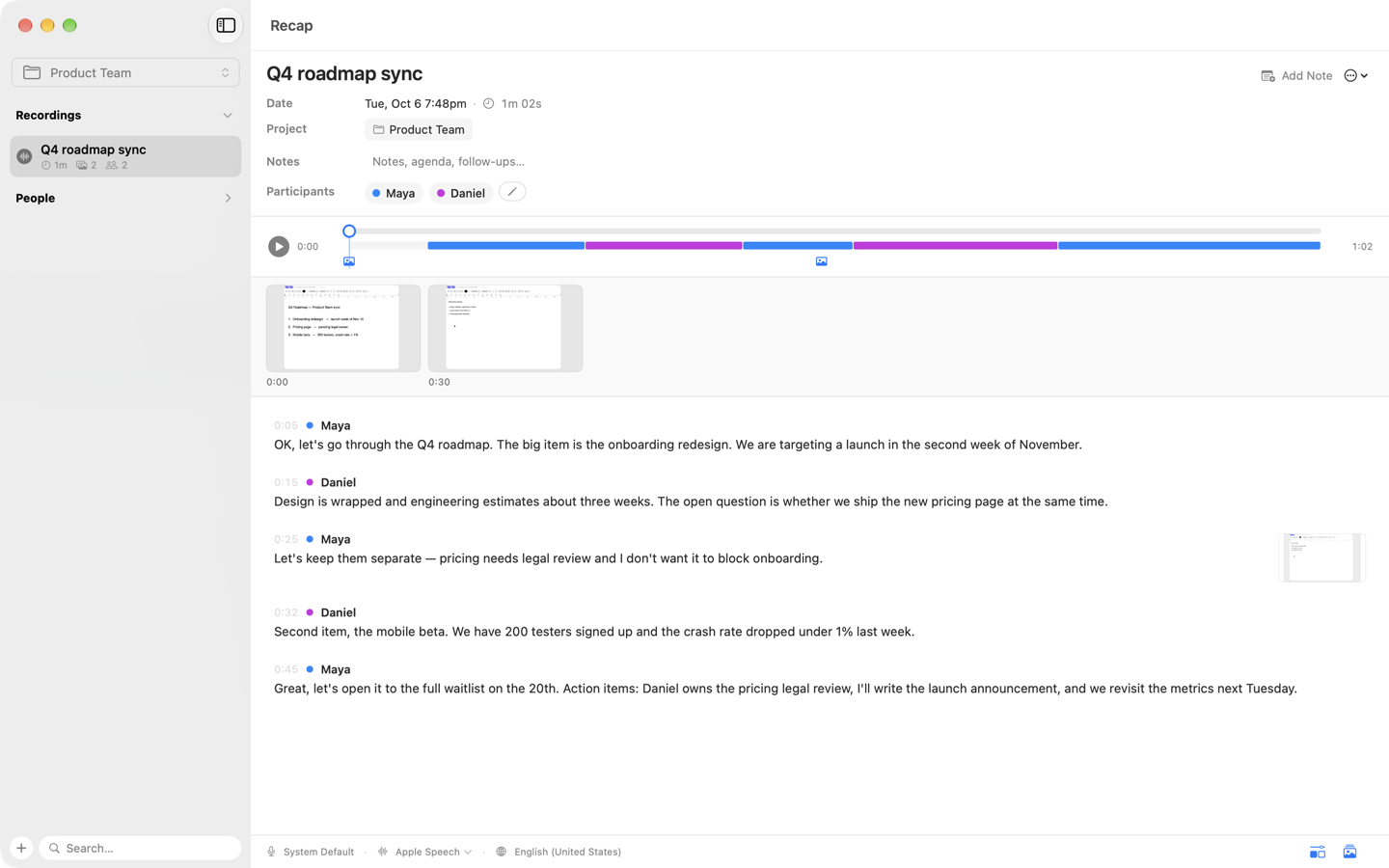
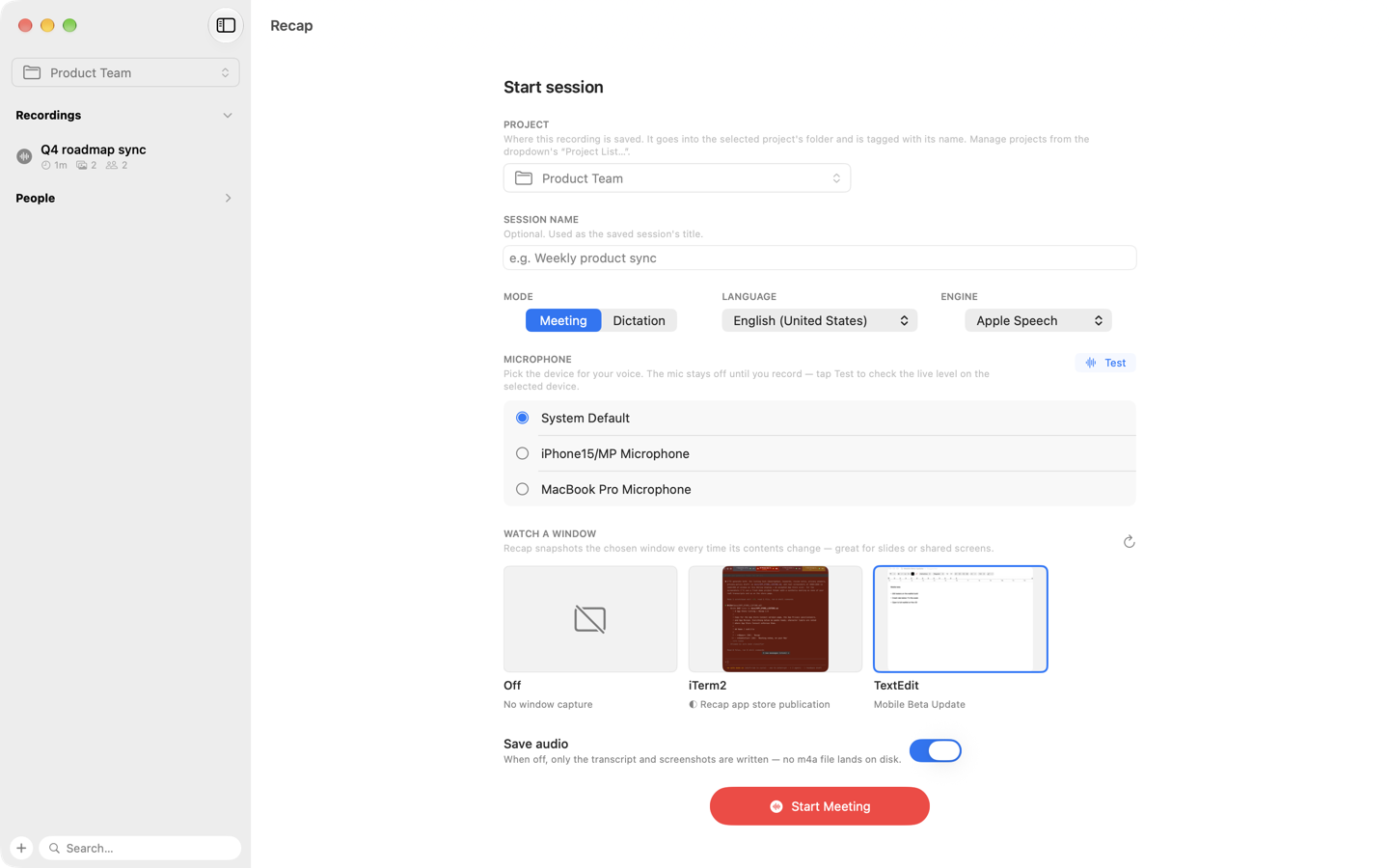
In Meeting mode Recap listens to your microphone and to the audio of the apps you’re on a call with — Zoom, Teams, FaceTime, Meet, a browser tab — so the transcript includes everyone.
Who said what
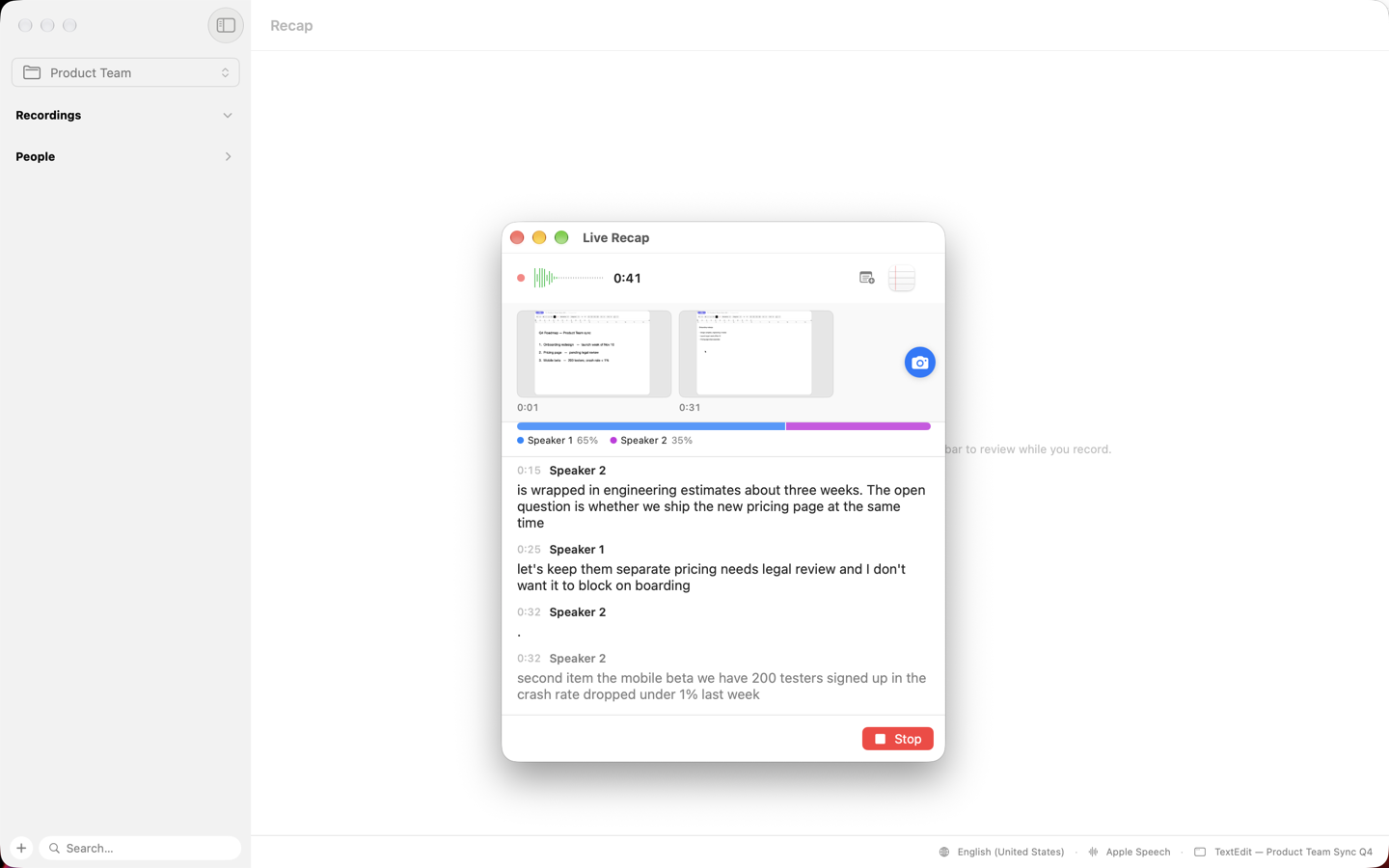
Speakers are separated automatically and labeled as they talk. Name a speaker once and every line they said updates; the original recording is never altered.
Slides, captured
Pick a window to watch — a shared screen, a deck, a whiteboard — and Recap snapshots it every time it changes, pinned to the moment in the transcript where it happened.
Private by default
Speech recognition, speaker separation and storage all happen on-device with Apple’s speech engine. Nothing leaves your Mac. Want a second opinion? Re-transcribe any recording with a cloud provider using your own API key — your choice, per recording.
Your files, your folders
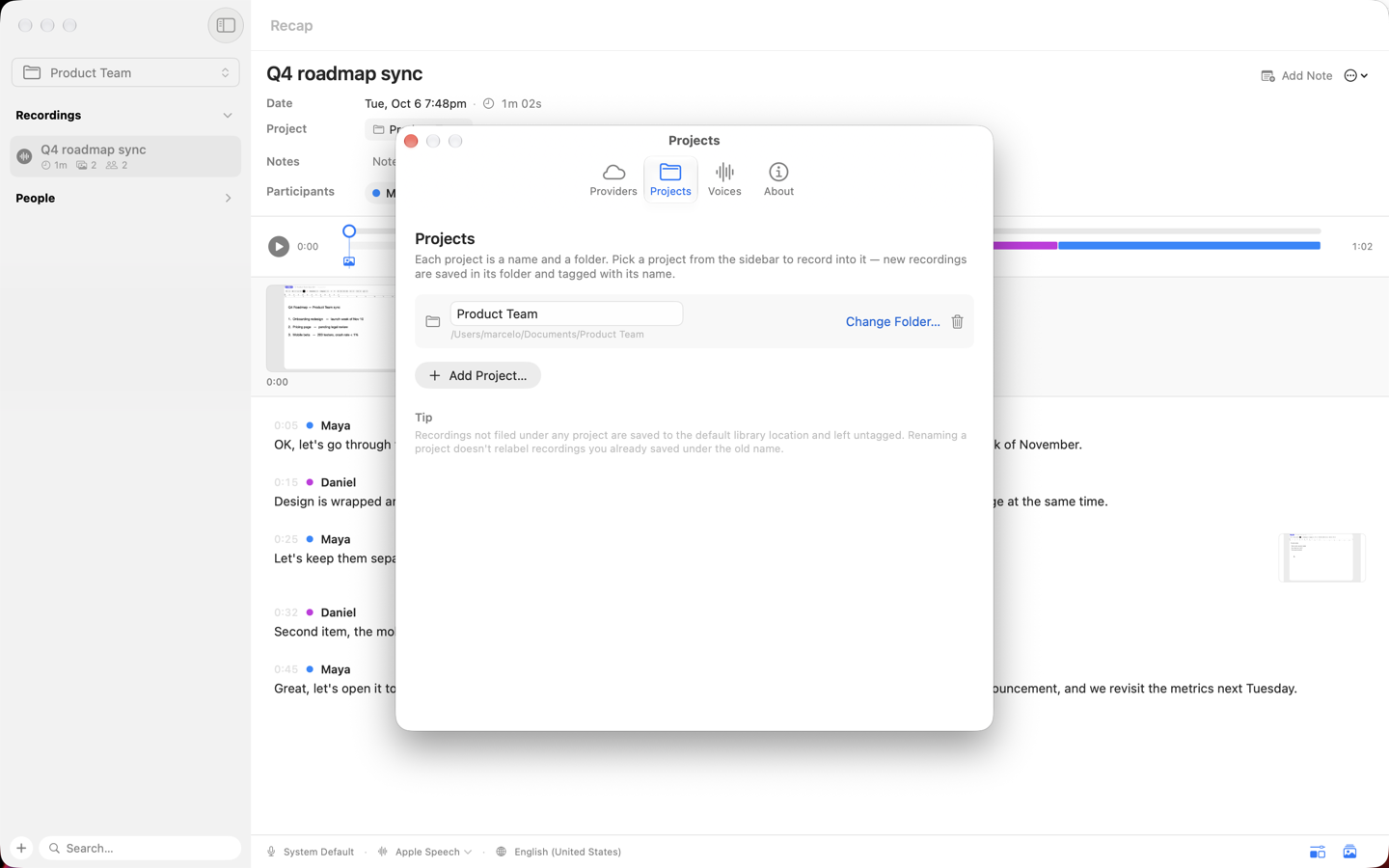
Every session is a plain Markdown file next to its audio and screenshots. Organize recordings into projects that map to real folders — iCloud Drive, Dropbox, anything — and open them with any app, forever.
Built for the long meeting
Recordings are saved continuously while they happen, so a crash or a dead battery never costs you the audio. Trim a transcript and the audio and screenshots are cut in lockstep. Delete goes to the Trash, with Undo.
See it
work
What it asks for,
and why
Recap needs the microphone to hear you, and — for Meeting mode — macOS’s Screen & System Audio Recording permission, which is how an app is allowed to hear other apps’ audio and capture a window you choose. Nothing is captured outside a recording, and no screen contents are captured unless you pick a window to watch. The details are in the privacy policy.